> ## Documentation Index
> Fetch the complete documentation index at: https://linkrunner-01ef8e08-chetan-sdk-install-version-bumps.mintlify.site/llms.txt
> Use this file to discover all available pages before exploring further.
# LinkedIn Ads
> Run LinkedIn ads for your app with in-app event optimization and deferred deep linking
## Overview
LinkedIn Ads integration with Linkrunner enables you to run powerful app growth campaigns while optimizing on real in-app events and providing seamless deferred deep linking. This integration allows you to track installs, sign-ups, purchases, and custom events across both Android and iOS platforms.
**📱 Works for both Android & iOS Apps**
### What You'll Get
* **Optimization on real in-app events** — Track and optimize on Install, Sign Up, Purchase, and custom events
* **Deferred deep linking** — Drop users into the right screen after first open, even if they need to install the app first
* **Consistent tracking** — Unified tracking across Android & iOS via the Linkrunner SDK
* **Cross-platform consistency** — Track installs across iOS and Android with one unified flow
## Setup Process
Setting up LinkedIn Ads integration involves three main steps: creating conversions in LinkedIn Campaign Manager, configuring ad accounts in Linkrunner, and setting up your first campaign.
## 1. Creating Conversions
This process creates conversion events in LinkedIn that will be used to track and optimize your campaigns.
### Step 1: Access LinkedIn Campaign Manager
1. Go to [LinkedIn Campaign Manager](https://www.linkedin.com/campaignmanager)
2. Select your ad account
### Step 2: Create Conversion
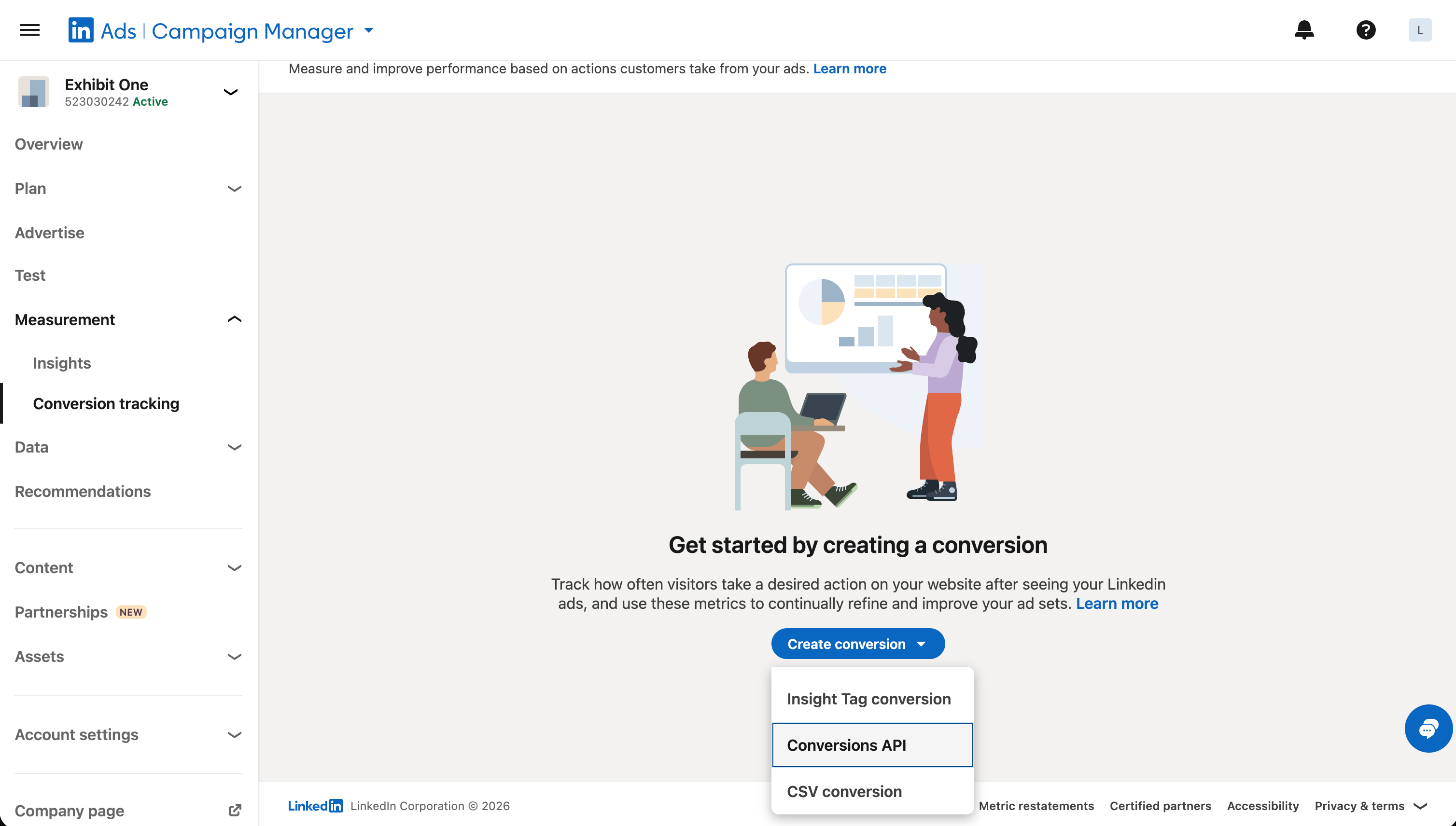
1. Select **Conversion Tracking** under **Measurement**
2. Click **Create conversion**
3. Select **Conversions API**
 ### Step 3: Configure Conversion Details
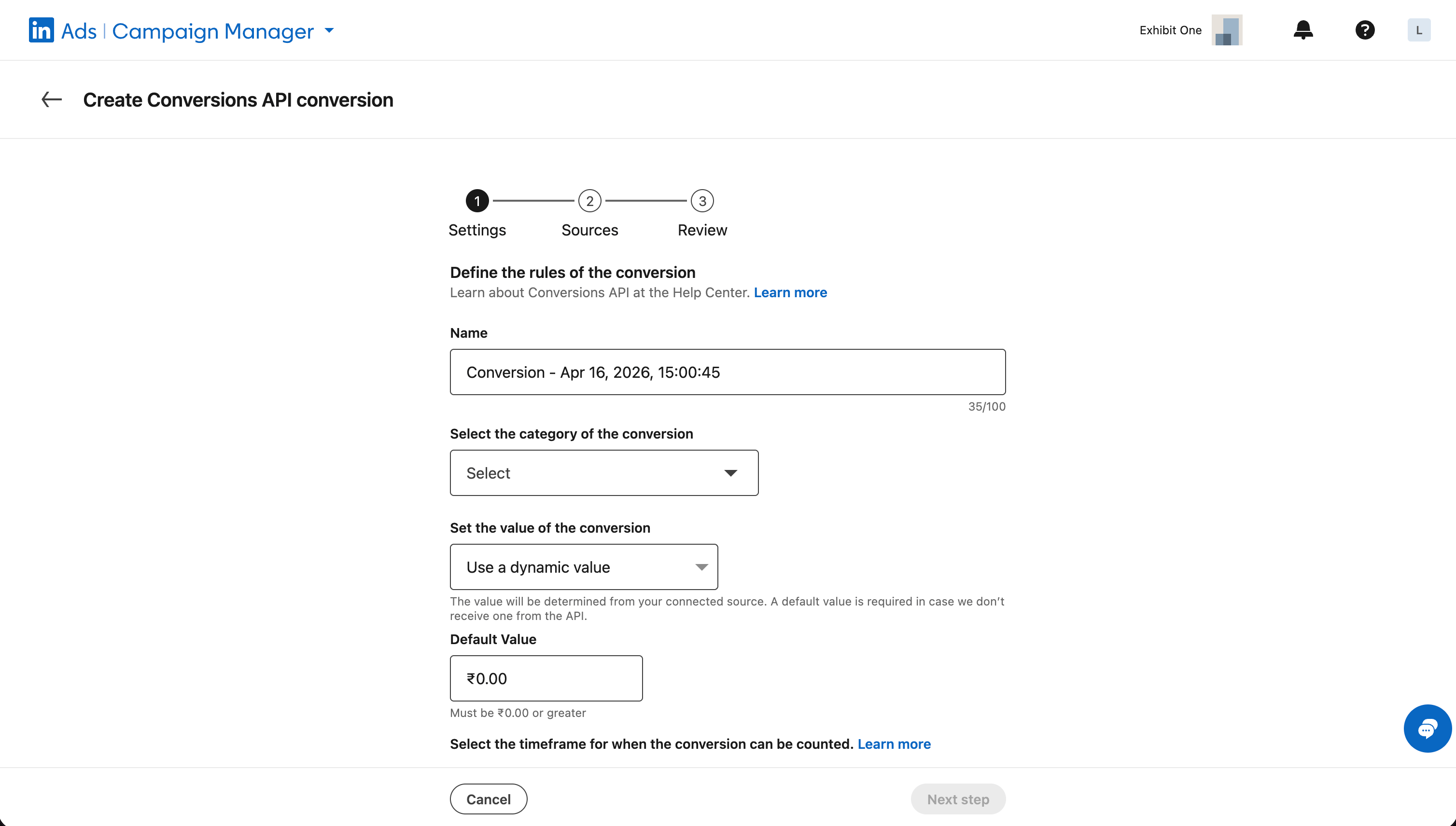
1. Name your conversion
2. Select the appropriate category
3. Click **Next step**
### Step 3: Configure Conversion Details
1. Name your conversion
2. Select the appropriate category
3. Click **Next step**
 ### Step 4: Select Data Source
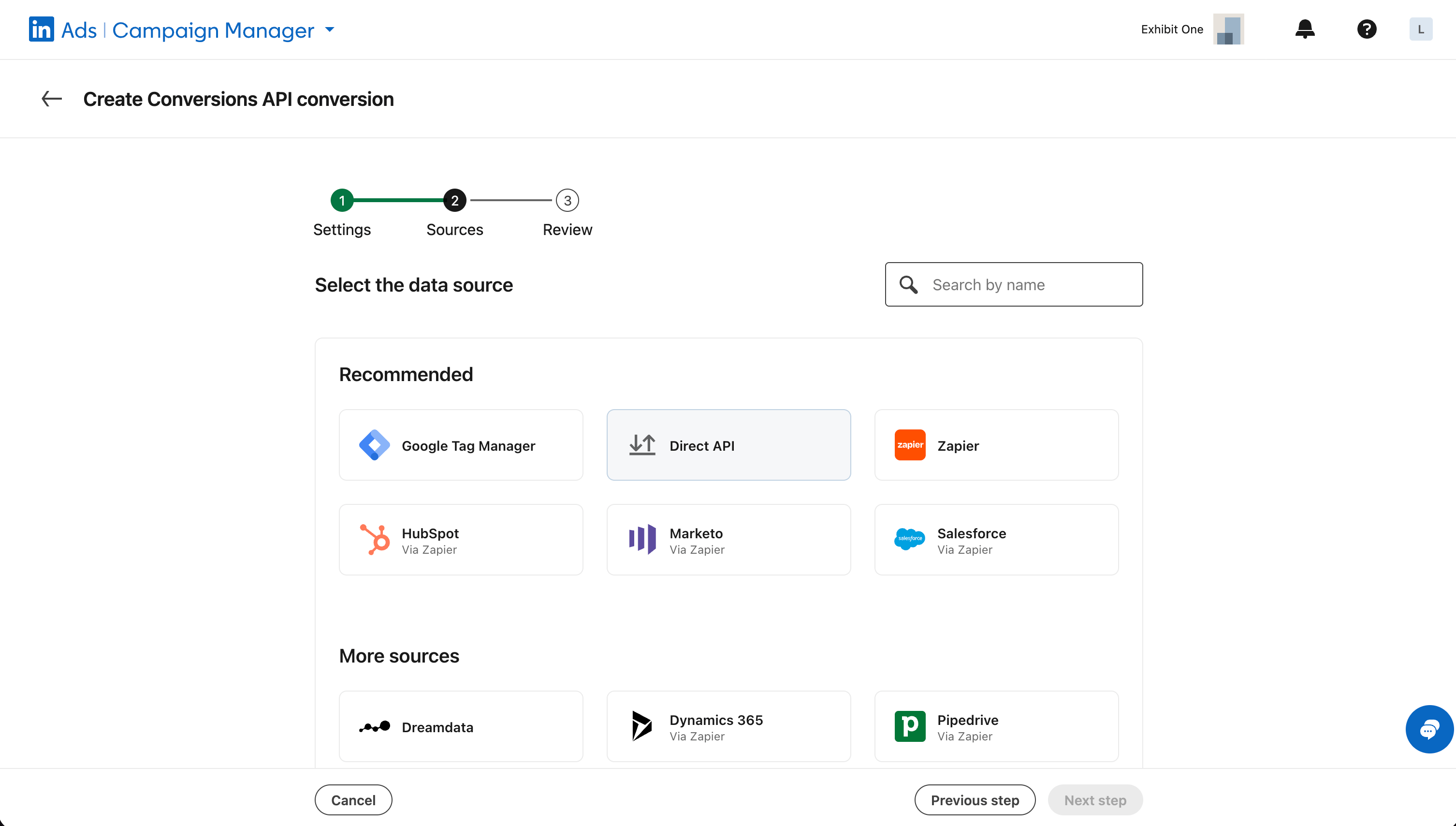
1. Select **Direct API** as the data source
2. Click **Next step**
### Step 4: Select Data Source
1. Select **Direct API** as the data source
2. Click **Next step**
 ### Step 5: Review and Create
1. Review your conversion settings
2. Click **Create**
### Step 6: Create Additional Conversions
1. Create different conversions as per your tracking needs (e.g., Install, Sign Up, Purchase)
## 2. Configuring Ad Accounts in Linkrunner
Connect your LinkedIn ad accounts with Linkrunner to enable seamless data sharing and conversion tracking.
### Step 1: Access LinkedIn Integration on Linkrunner
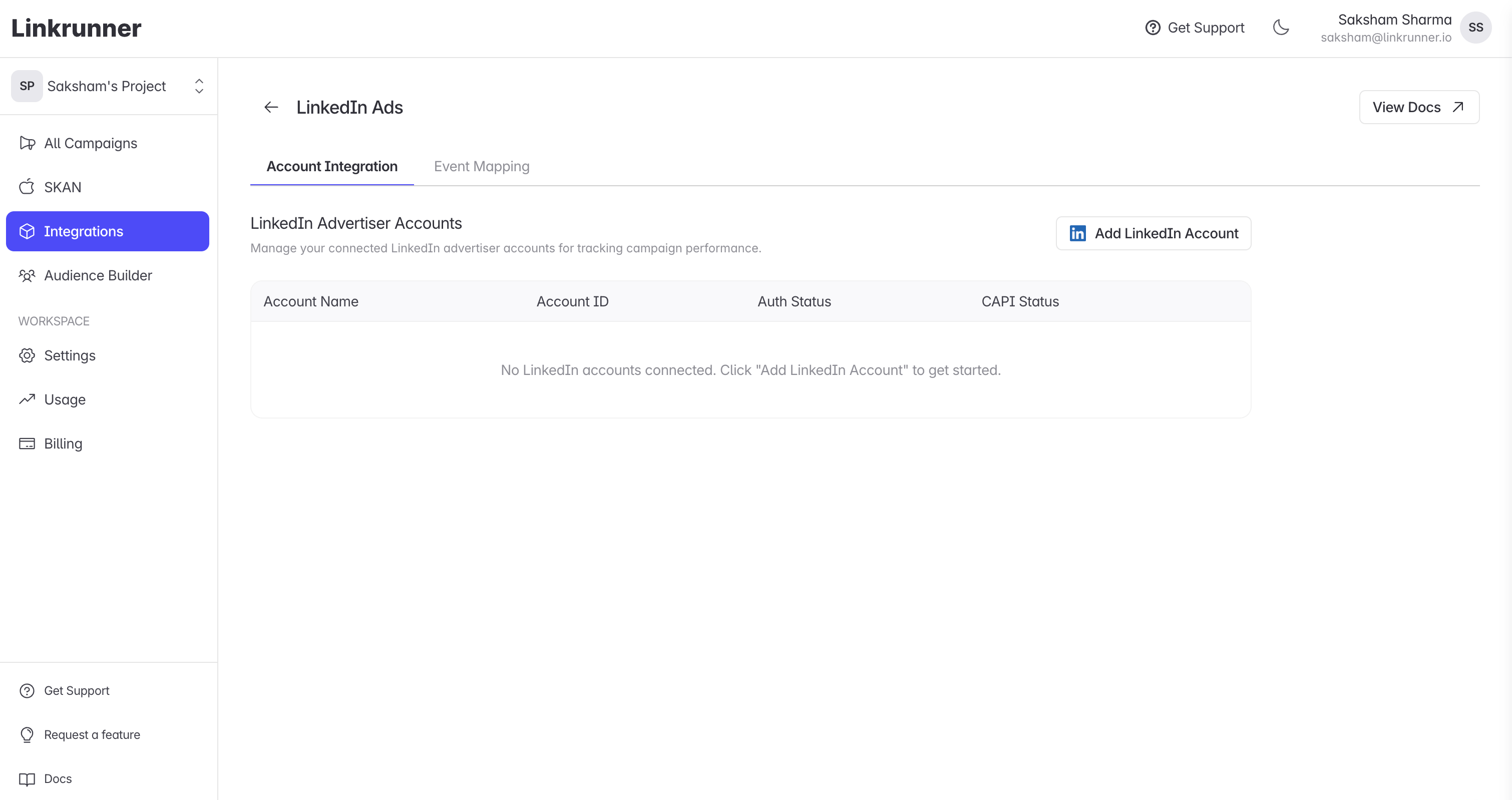
1. Go to [LinkedIn Integration tab on Linkrunner](https://dashboard.linkrunner.io/dashboard/integrations/linkedin-ads)
### Step 2: Add LinkedIn Account
1. Click **Add LinkedIn Account** to add your LinkedIn Ad accounts
### Step 5: Review and Create
1. Review your conversion settings
2. Click **Create**
### Step 6: Create Additional Conversions
1. Create different conversions as per your tracking needs (e.g., Install, Sign Up, Purchase)
## 2. Configuring Ad Accounts in Linkrunner
Connect your LinkedIn ad accounts with Linkrunner to enable seamless data sharing and conversion tracking.
### Step 1: Access LinkedIn Integration on Linkrunner
1. Go to [LinkedIn Integration tab on Linkrunner](https://dashboard.linkrunner.io/dashboard/integrations/linkedin-ads)
### Step 2: Add LinkedIn Account
1. Click **Add LinkedIn Account** to add your LinkedIn Ad accounts
 ### Step 3: Generate Access Token in LinkedIn
1. Go to [LinkedIn Campaign Manager](https://www.linkedin.com/campaignmanager)
2. Select your ad account
3. Select **Signals manager** under **Data**
4. Select **Direct API**
### Step 3: Generate Access Token in LinkedIn
1. Go to [LinkedIn Campaign Manager](https://www.linkedin.com/campaignmanager)
2. Select your ad account
3. Select **Signals manager** under **Data**
4. Select **Direct API**
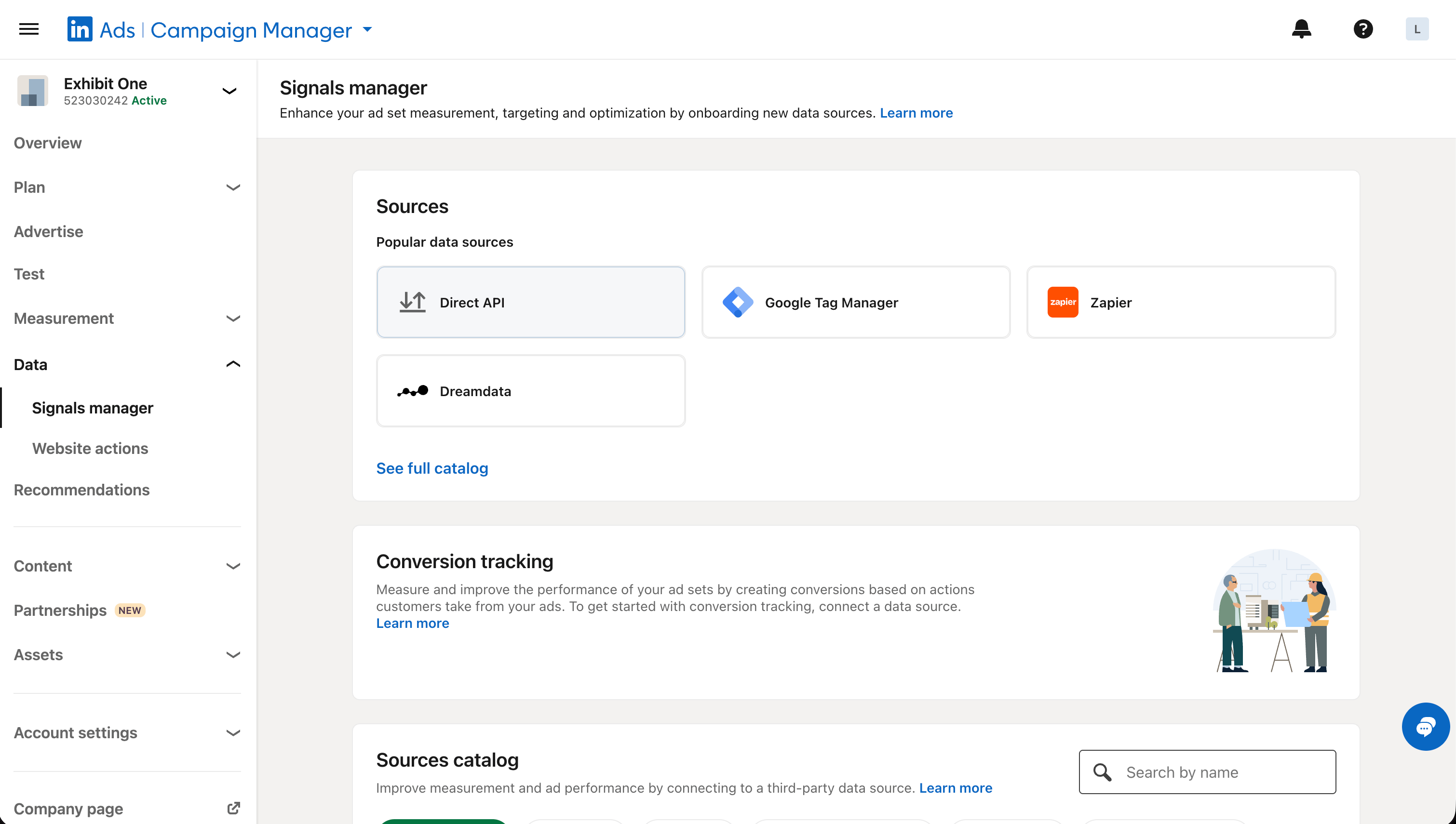 5. Click **Generate access token**
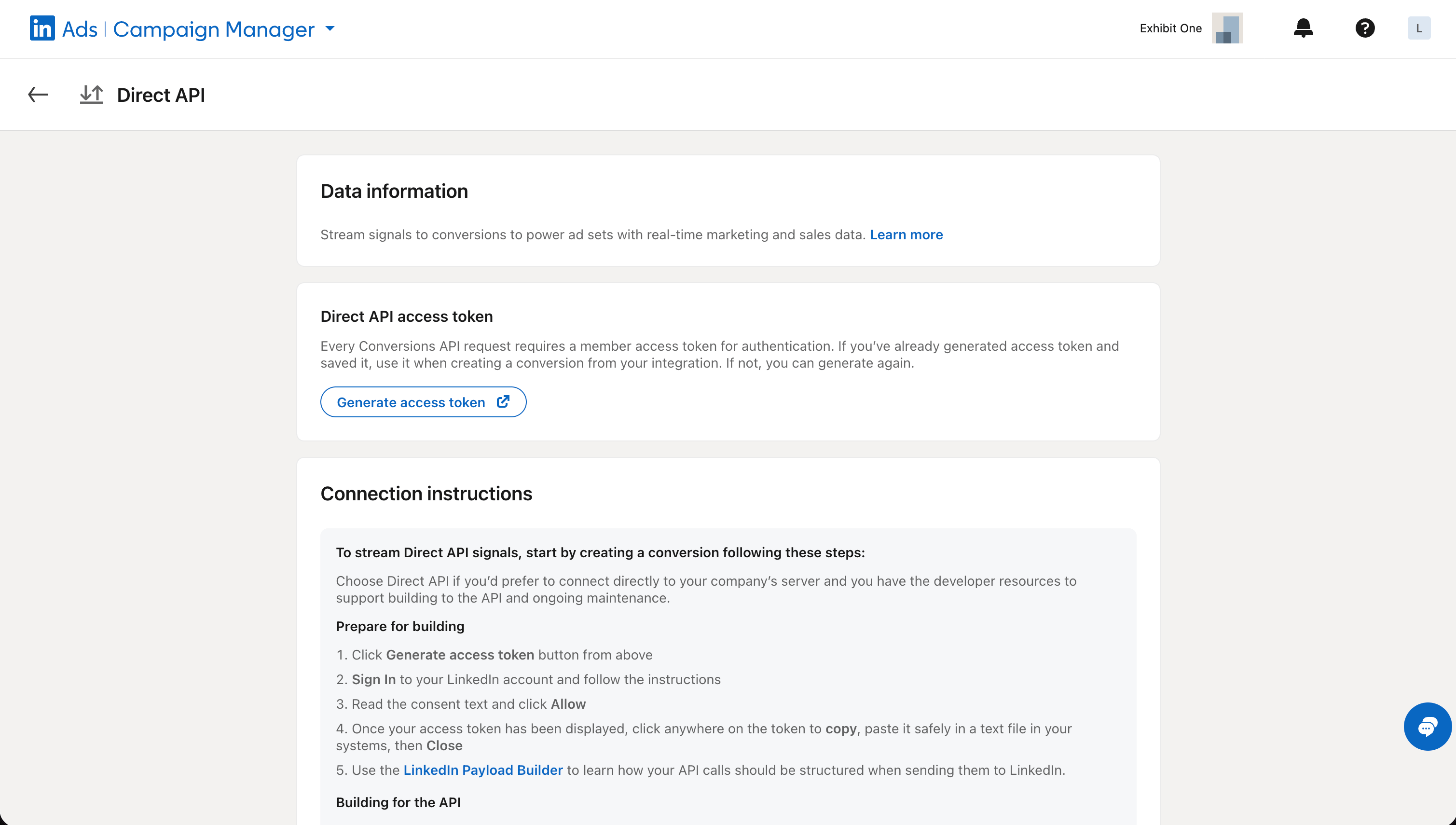 6. Copy the token
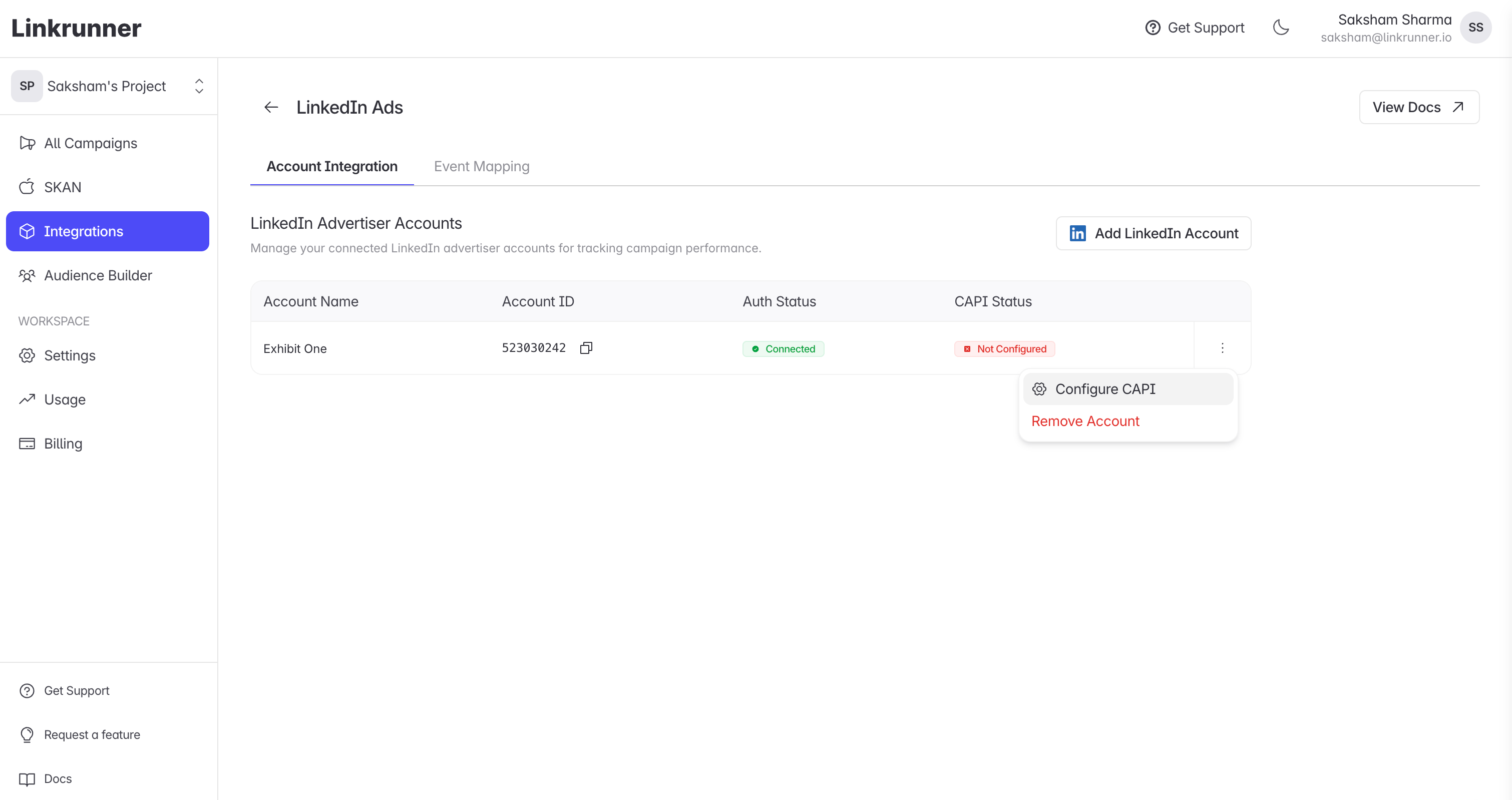
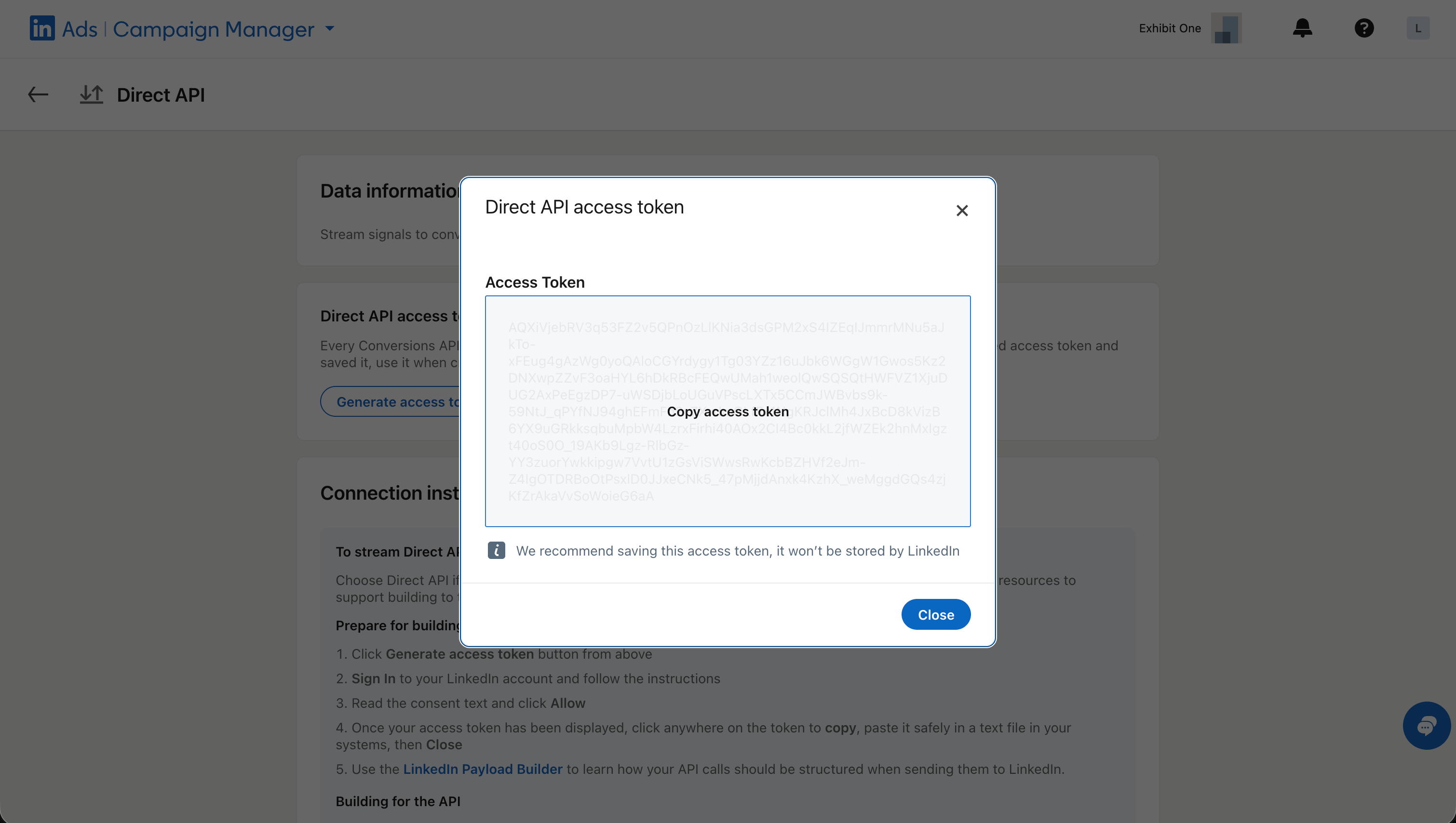 ### Step 4: Configure CAPI on Linkrunner
1. Go back to Linkrunner and click on the three dots of the LinkedIn ad account you added
### Step 4: Configure CAPI on Linkrunner
1. Go back to Linkrunner and click on the three dots of the LinkedIn ad account you added
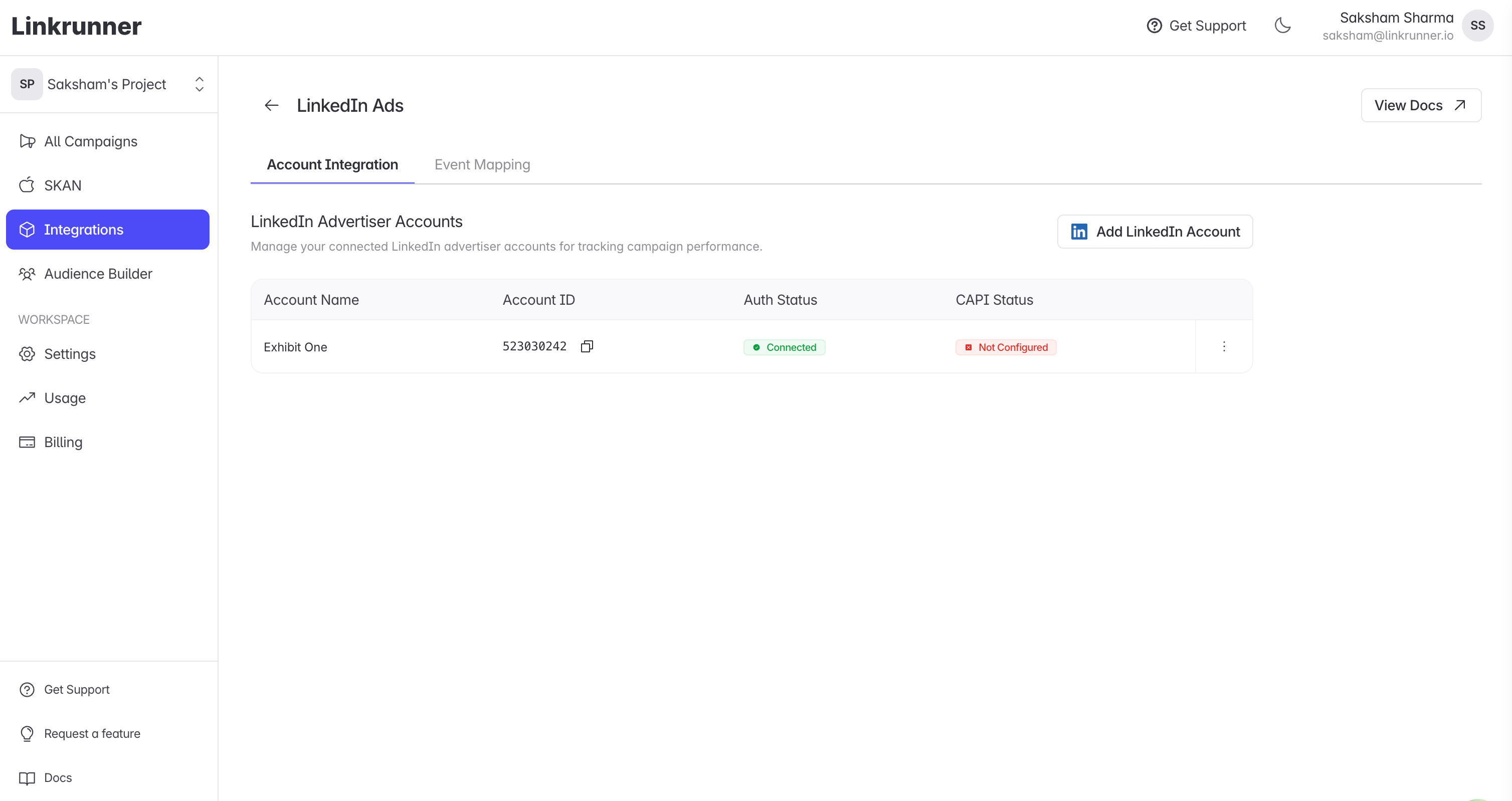 2. Click on **Configure CAPI**
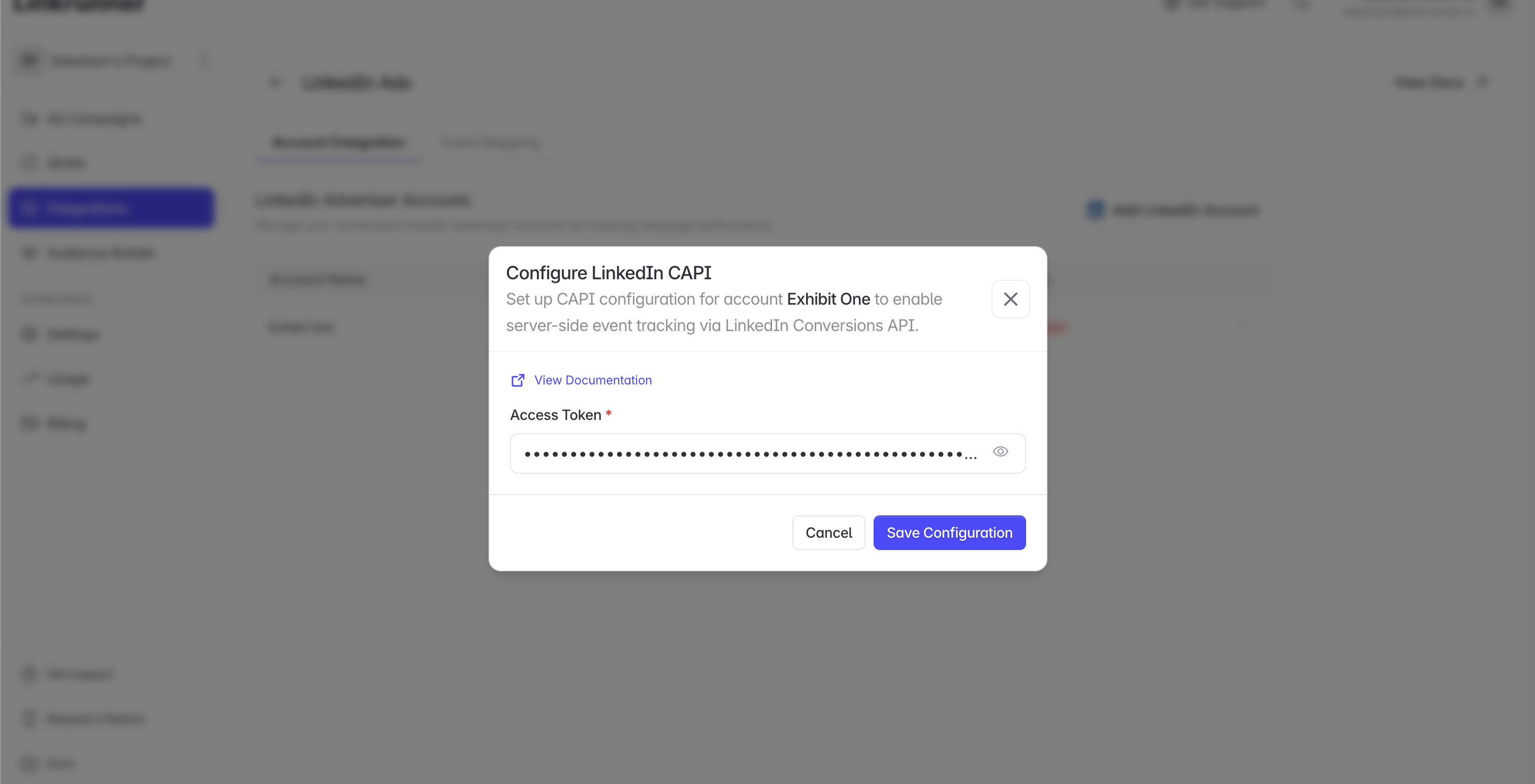
 3. Paste the token
4. Click **Save Configuration**
3. Paste the token
4. Click **Save Configuration**
 ### Step 5: Repeat for Additional Accounts
1. Do the same process for all the ad accounts you want to integrate
**At this point your LinkedIn integration setup is completed!** Your LinkedIn Ads account is now connected to Linkrunner and ready to track conversions.
## 3. Setting Up Your First LinkedIn Campaign
After your accounts are configured, you can create your first LinkedIn ad campaign optimized for app conversions.
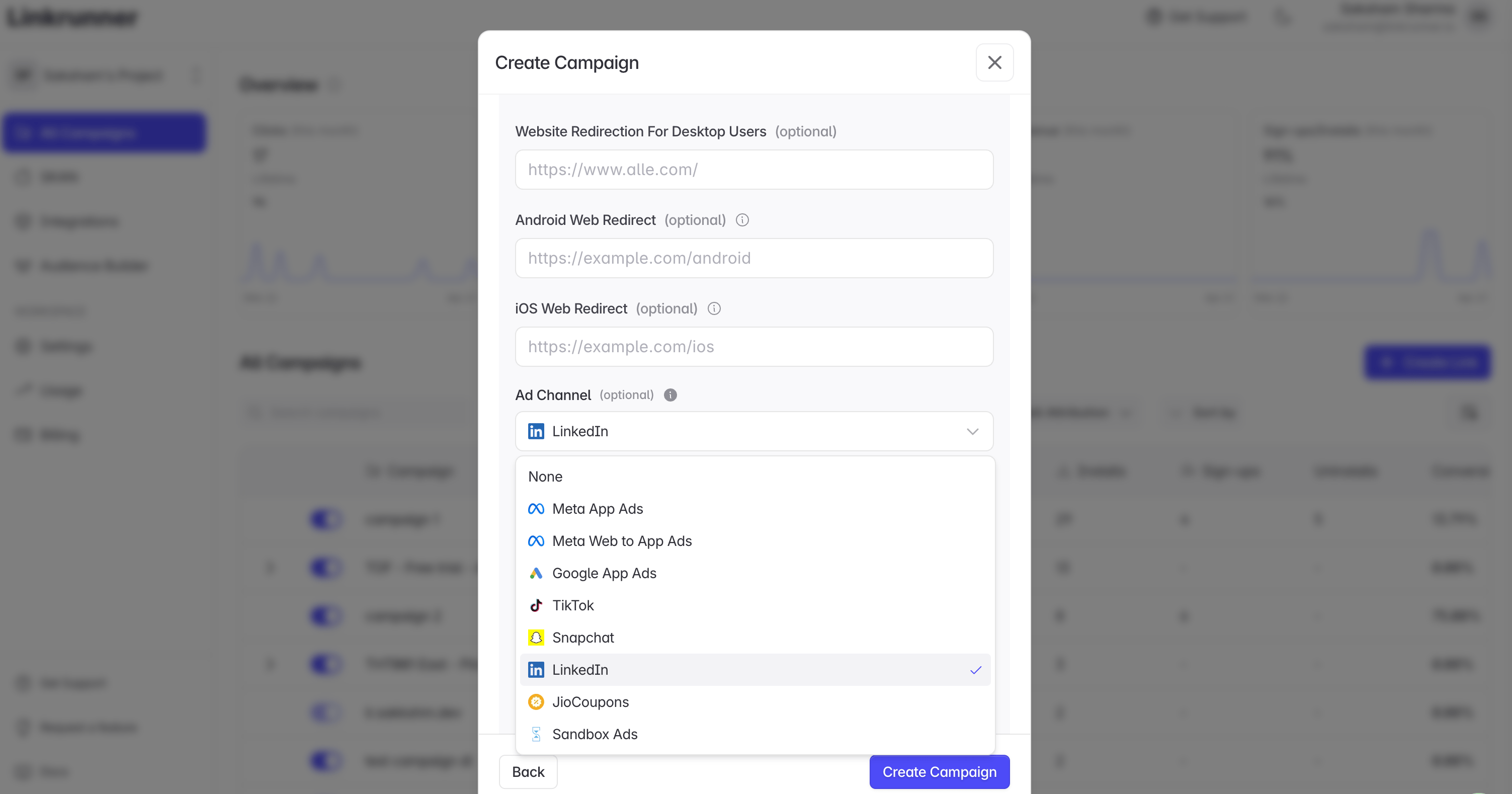
### Step 1: Create Campaign Link in Linkrunner
1. Go to [Linkrunner Dashboard](https://dashboard.linkrunner.io/)
2. Create a new campaign for each creative you plan to run
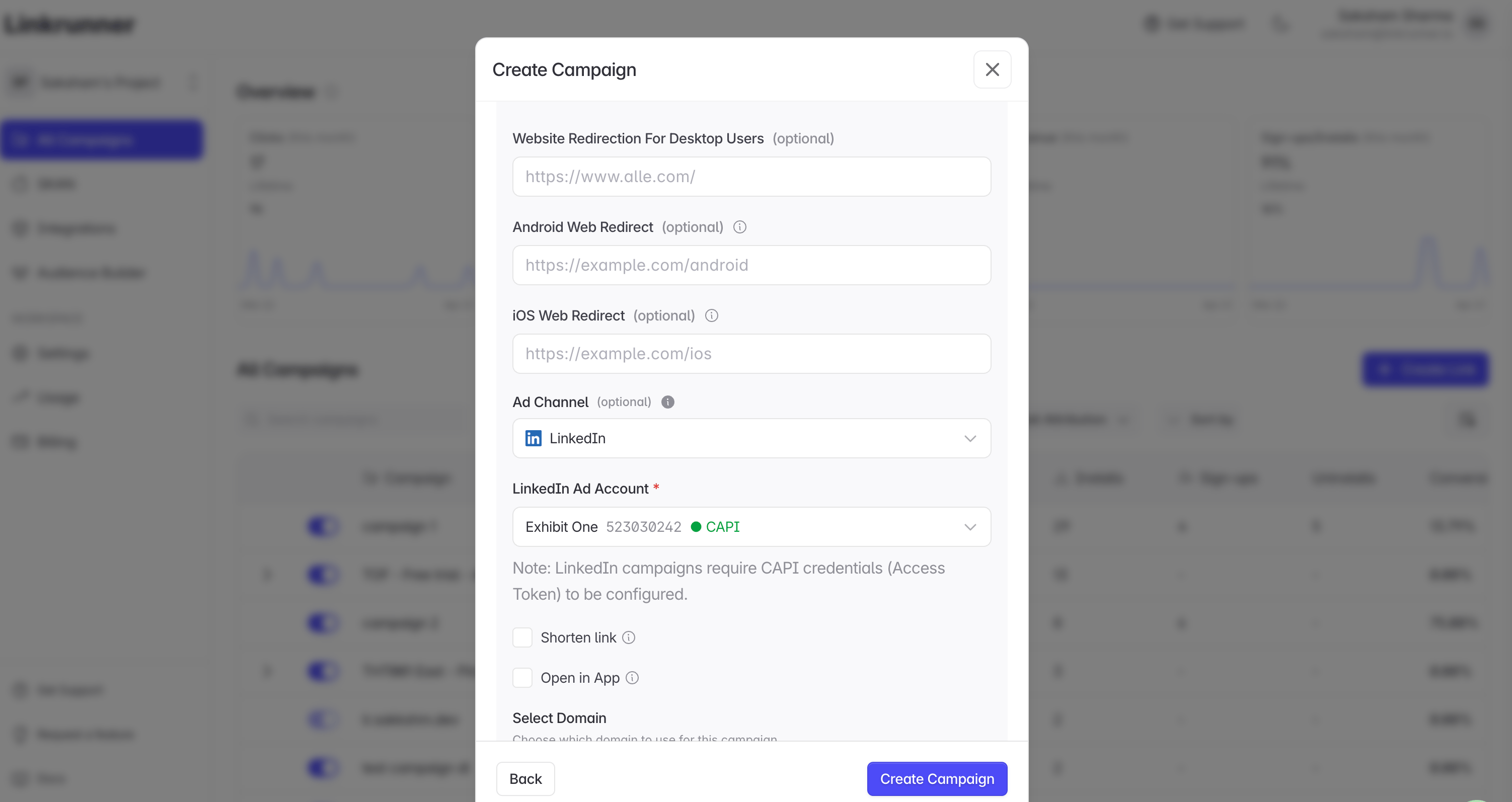
3. Select **LinkedIn** as the ad channel and select an ad account
4. Copy the **Shareable campaign link** of the campaign
### Step 5: Repeat for Additional Accounts
1. Do the same process for all the ad accounts you want to integrate
**At this point your LinkedIn integration setup is completed!** Your LinkedIn Ads account is now connected to Linkrunner and ready to track conversions.
## 3. Setting Up Your First LinkedIn Campaign
After your accounts are configured, you can create your first LinkedIn ad campaign optimized for app conversions.
### Step 1: Create Campaign Link in Linkrunner
1. Go to [Linkrunner Dashboard](https://dashboard.linkrunner.io/)
2. Create a new campaign for each creative you plan to run
3. Select **LinkedIn** as the ad channel and select an ad account
4. Copy the **Shareable campaign link** of the campaign
 ### Step 2: Access LinkedIn Campaign Manager
1. Go to [LinkedIn Campaign Manager](https://www.linkedin.com/campaignmanager)
2. Select the same ad account
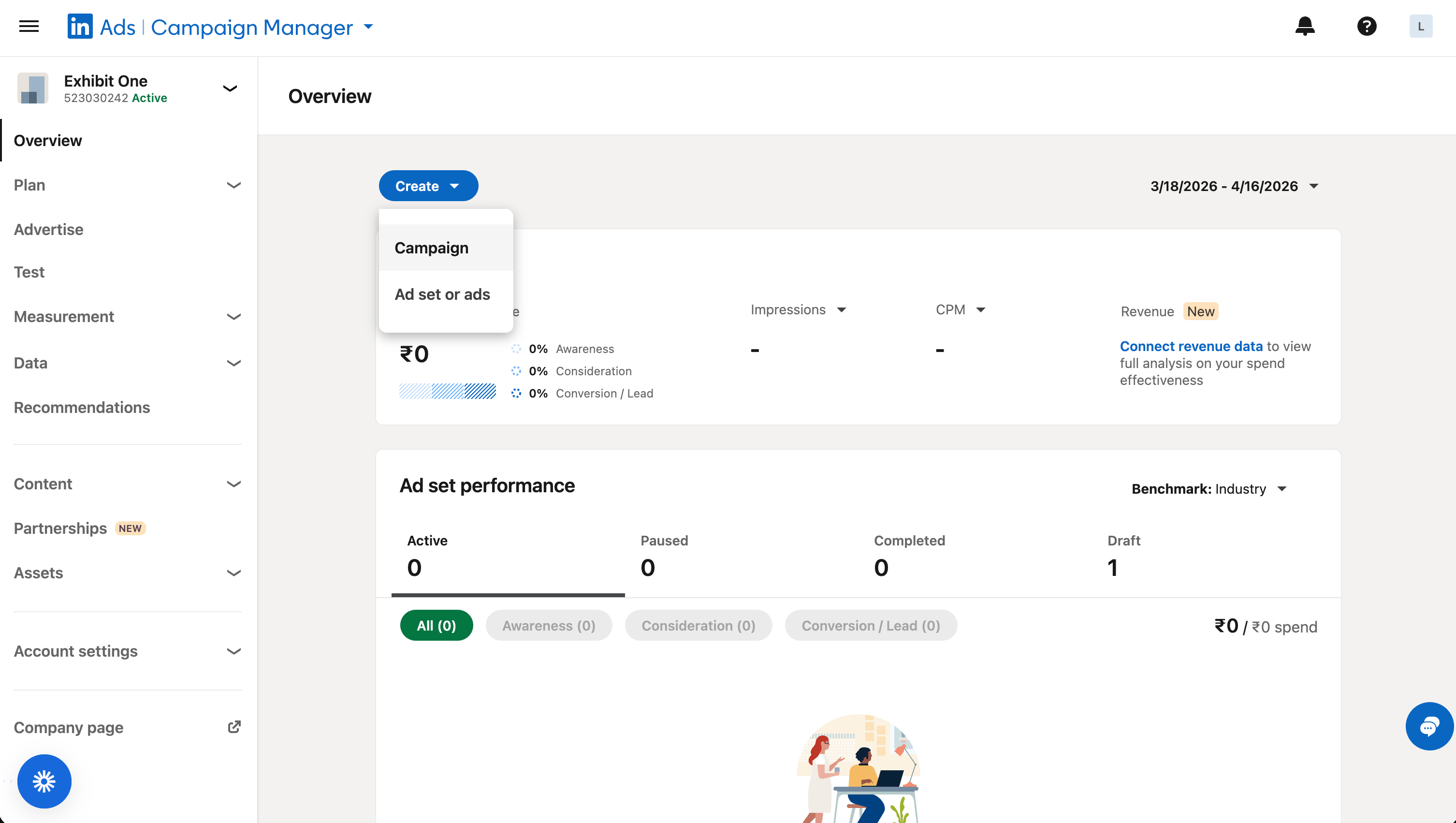
### Step 3: Create Campaign
1. From the **Overview** tab, click on **Create**
2. Select **Campaign**
### Step 2: Access LinkedIn Campaign Manager
1. Go to [LinkedIn Campaign Manager](https://www.linkedin.com/campaignmanager)
2. Select the same ad account
### Step 3: Create Campaign
1. From the **Overview** tab, click on **Create**
2. Select **Campaign**
 3. Add your campaign name
4. Select the objective
3. Add your campaign name
4. Select the objective
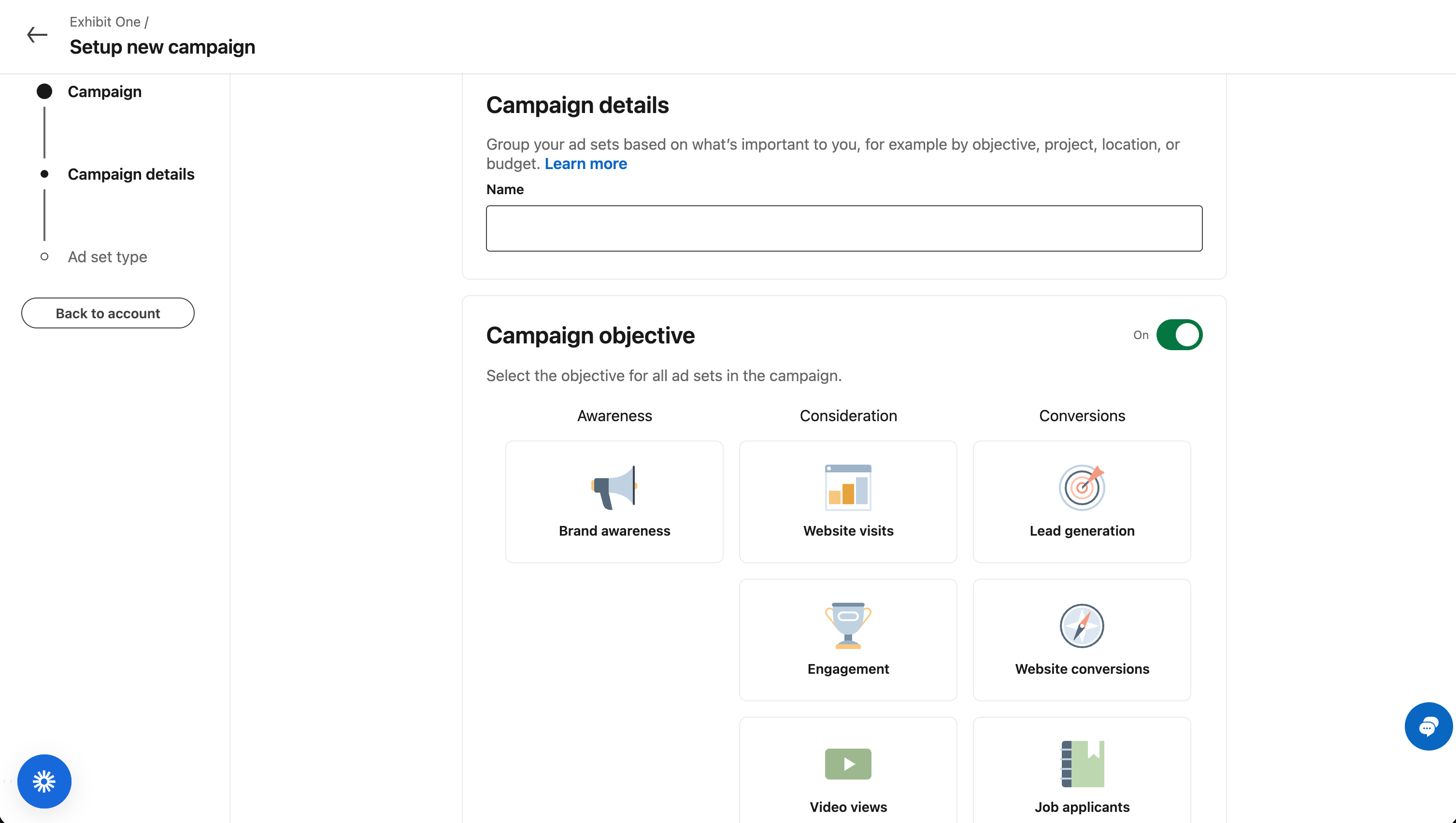 5. Click **Next**
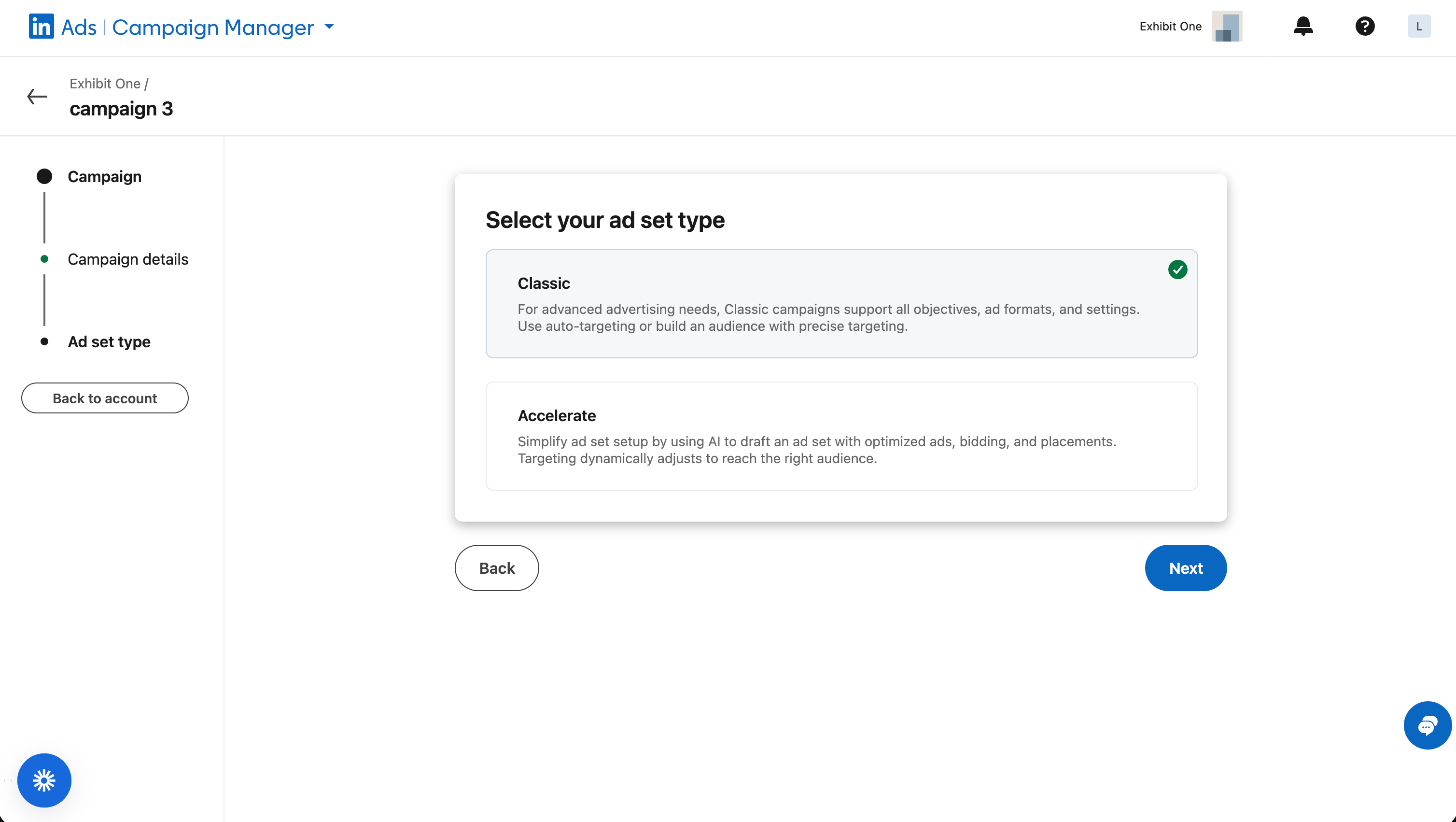
### Step 4: Configure Ad Set
1. Select **Classic** for the ad set type
2. Click **Next**
5. Click **Next**
### Step 4: Configure Ad Set
1. Select **Classic** for the ad set type
2. Click **Next**
 3. Name your ad set
4. Paste the campaign link in **source URL**
3. Name your ad set
4. Paste the campaign link in **source URL**
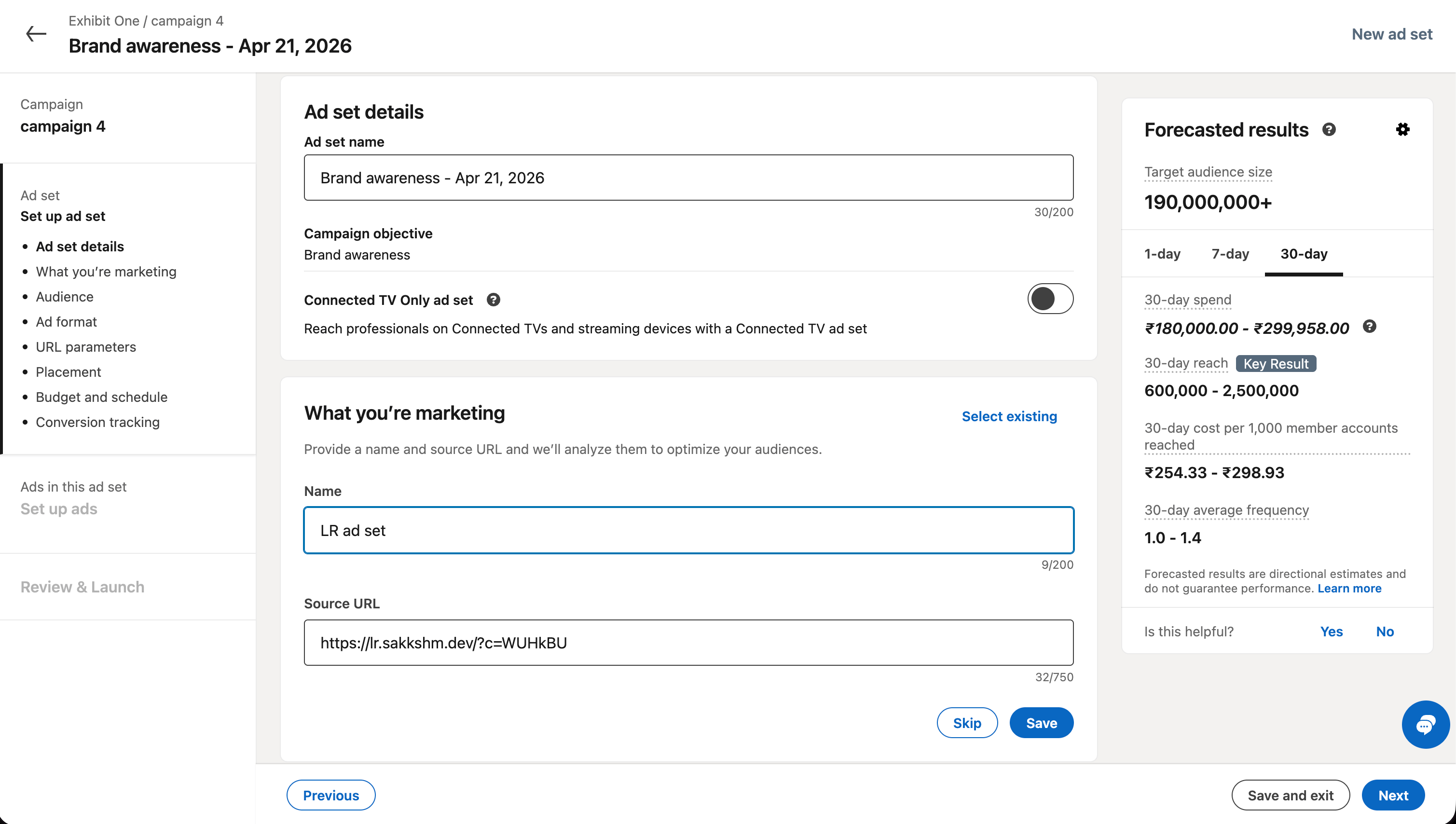 5. Select the suitable conversion events for this campaign
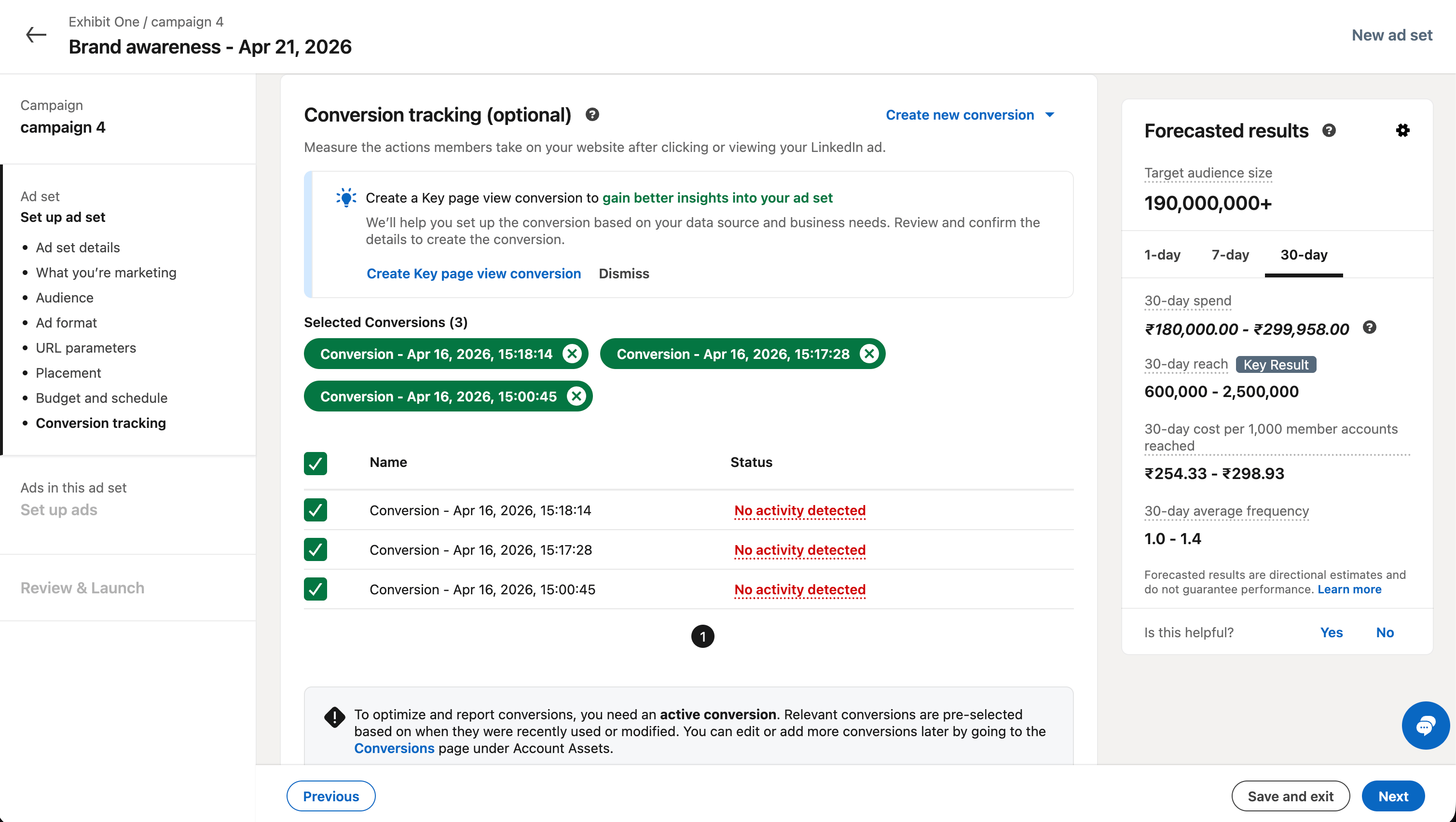 6. Click **Next**
### Step 5: Create Ad
1. Click on **Create ad**
2. Select **Start from a blank ad**
6. Click **Next**
### Step 5: Create Ad
1. Click on **Create ad**
2. Select **Start from a blank ad**
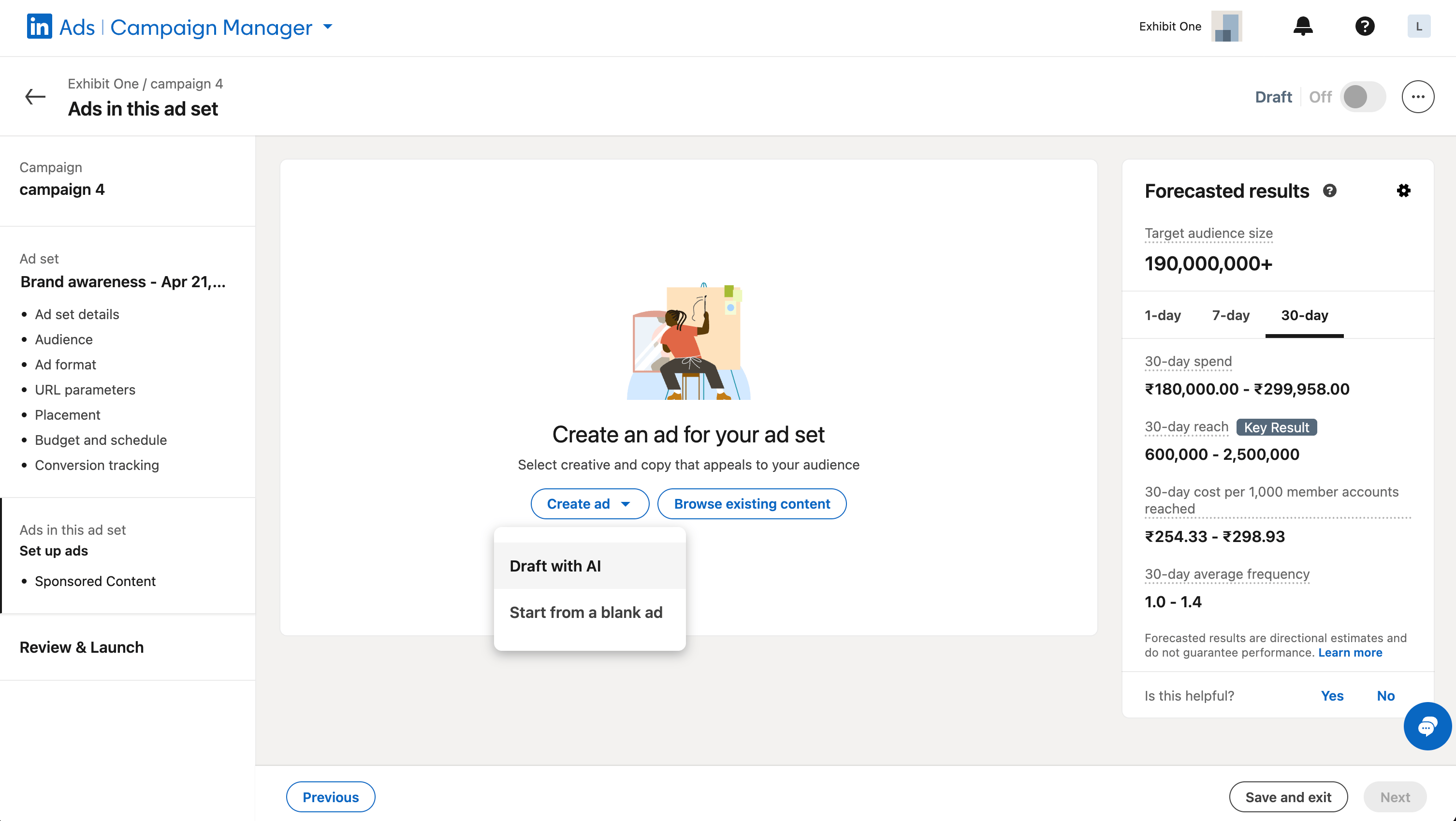 3. Give an introductory text
4. In **External URL**, paste the campaign link copied from Linkrunner
3. Give an introductory text
4. In **External URL**, paste the campaign link copied from Linkrunner
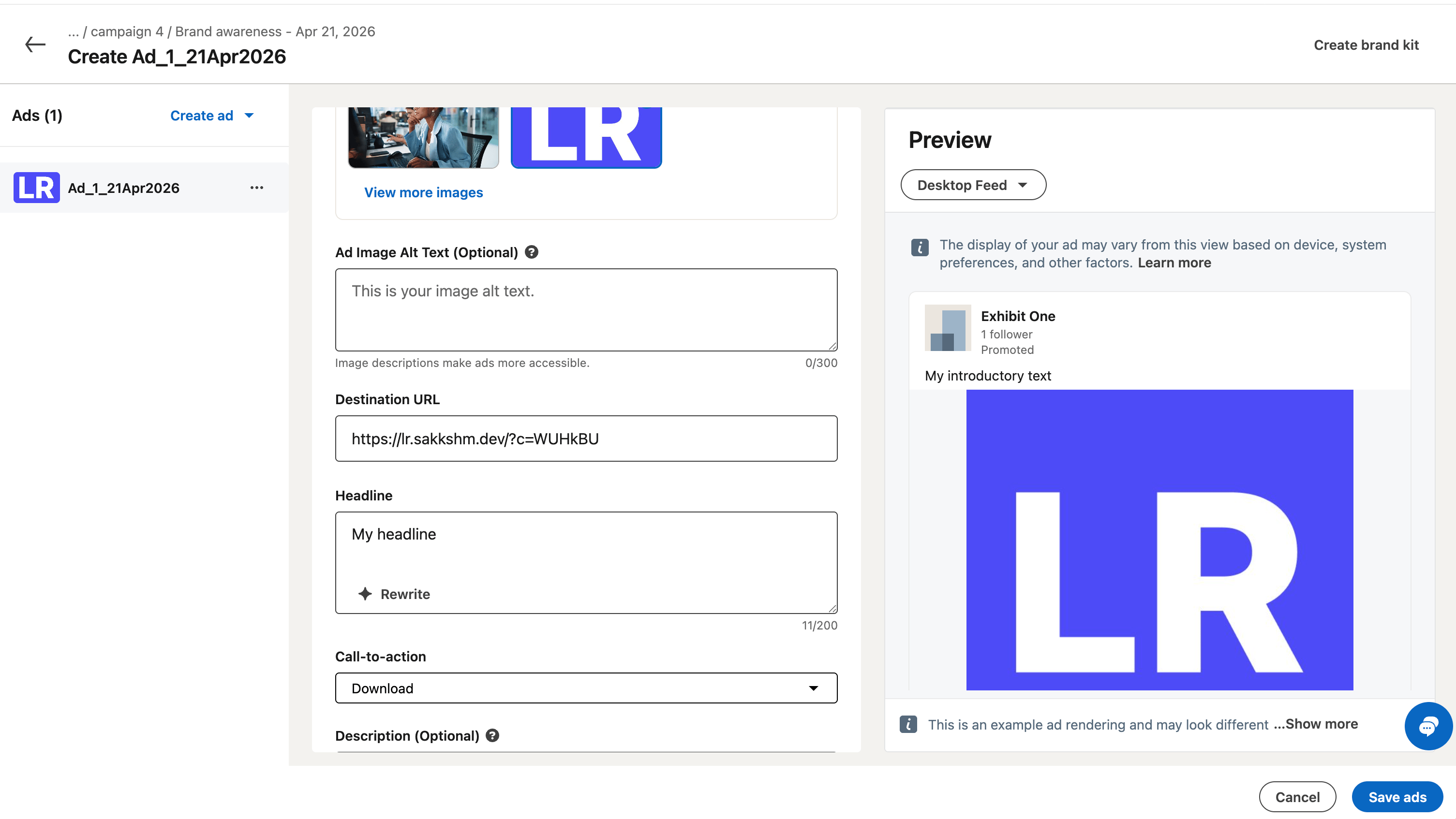 5. Click on **Save ads**
You can easily duplicate campaigns once created for every ad creative, making it faster to create multiple campaigns with different tracking links.
## Deferred Deep Linking
One of the powerful features of running LinkedIn ads with Linkrunner is deferred deep linking support:
* If your campaign includes deep link parameters, Linkrunner ensures that **after the install and first open**, users land on the correct in-app content
* This means a user who clicked an ad for a specific product but hadn't installed your app yet will still be taken directly to that product screen inside the app after installation
* Works seamlessly across both iOS and Android platforms
## Why Run Web-to-App Ads?
Running **web-to-app ads** with LinkedIn gives you more flexibility and control over your campaigns, while still unlocking:
* **In-app event optimization** — LinkedIn can optimize on installs or post-install events like purchases
* **Deferred deep linking** — Users land on the right content inside your app after they install from the ad
* **Cross-platform consistency** — Track installs across iOS and Android with one unified flow
* **Better attribution** — More accurate tracking of user acquisition and in-app behavior
Start by optimizing on simple events like app installs or sign-ups before moving to more complex conversion events
like purchases. This helps LinkedIn's algorithm gather initial data.
For any questions or assistance with LinkedIn Ads integration, please contact us at [support@linkrunner.io](mailto:support@linkrunner.io).
5. Click on **Save ads**
You can easily duplicate campaigns once created for every ad creative, making it faster to create multiple campaigns with different tracking links.
## Deferred Deep Linking
One of the powerful features of running LinkedIn ads with Linkrunner is deferred deep linking support:
* If your campaign includes deep link parameters, Linkrunner ensures that **after the install and first open**, users land on the correct in-app content
* This means a user who clicked an ad for a specific product but hadn't installed your app yet will still be taken directly to that product screen inside the app after installation
* Works seamlessly across both iOS and Android platforms
## Why Run Web-to-App Ads?
Running **web-to-app ads** with LinkedIn gives you more flexibility and control over your campaigns, while still unlocking:
* **In-app event optimization** — LinkedIn can optimize on installs or post-install events like purchases
* **Deferred deep linking** — Users land on the right content inside your app after they install from the ad
* **Cross-platform consistency** — Track installs across iOS and Android with one unified flow
* **Better attribution** — More accurate tracking of user acquisition and in-app behavior
Start by optimizing on simple events like app installs or sign-ups before moving to more complex conversion events
like purchases. This helps LinkedIn's algorithm gather initial data.
For any questions or assistance with LinkedIn Ads integration, please contact us at [support@linkrunner.io](mailto:support@linkrunner.io).